Tampilkan postingan dengan label Tutorial. Tampilkan semua postingan
Tampilkan postingan dengan label Tutorial. Tampilkan semua postingan
Senin, 23 November 2009
Menampilkan Emoticon Facebook
Tips ini juga hanya berlaku bagi pengguna browser firefox sajah, karena disini kita memanfaatkan plugin firefox. Untuk lebih lengkapnya ikuti aja langkah-langkahnya di bawah ini:
Akan seperti gambar berikut:


Sabtu, 24 Oktober 2009
Play Warcraft 3 without Cedega on Linux
If You are Ubuntu/Linux user and You want to play Warcraft 3 and You don't want to pay ~15$ for Cedega (it is tool for running games in Linux) use this guide. It isn't that hard as people say :)

- Step 1. Installing Wine
First You need to install Wine,...
If You are usnig Ubuntu go to Ternimal and type: (for other distribution read here)
sudo apt-get install wine
or You can use Add/Remmove or Synaptic Package Manager.
- Step 2. Installing Warcraft 3
Now insert Warcraft 3 RoC cd in CD-Rom
Then start Install.exe (right click > Open With Wine Widndows Program Loader)
Installation is normal as in windows, if You wanna change installation patch don't us to other partition don't use "D:/Games/Warcraft III" that don't work in Linux.
Use browse and select it manual, partitions are in
/media
for example I installed Warcraft III in my "D:" partition and installation patch looks like this:
/media/sdb1/Games/Warcraft III
Then after installing WC3 RoC install WC3 TFT
- Step 3. Creating Launcher
Warcraft 3 shortcut will be on desktop but don't use that shortcut because it will run Warcraft in DirectX mode and it don't works soo good with DirectX mode.
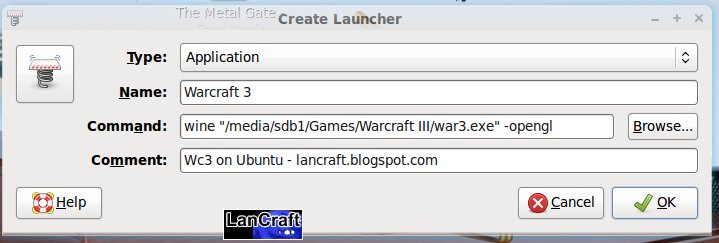
Right click on desktop > Create Launcher... > and then fill
Type: Application
Name: Warcraft III (or something else, it is just a name :))
Command: wine "/GAME PATCH/war3.exe" -opengl replace GAME PATCH with game pacth, if you didn't change it use: /home/USER/.wine/dosdevices/c:/Program Files/Warcraft III/
- Step 3. Installing Patches
For patches just download them and start them (right click > open with wine wine windows program loader)
Before Running Warcraft!
Warcraft movies will not play, because of that go to Warcraft III folder and rename folder Movies to something like Moviesxxx or similar.
- Troubleshoots
1. If game looks something like this:
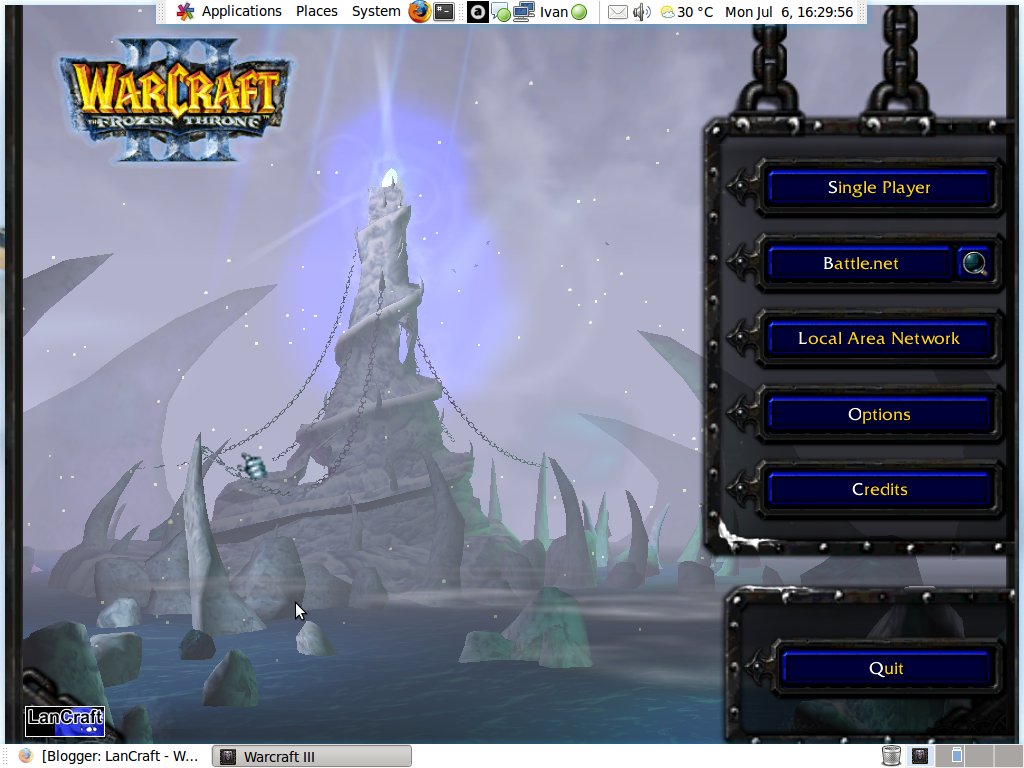
then go to Applications > Wine > Configure Wine > Graphics > Check "Emulate a Virtual Desktop" and set resolution to resolution in Warcraft 3.
Or try to change game resolution.
2. If game runs slow change Video Options to low. Read More..
Langganan:
Postingan (Atom)